
I’ve been a home automation enthusiast for a few years now, not in a “smart house influencer” way, just in a “how can I make my life a little easier?” kind of way. I’m genuinely fascinated by how much it simplifies the small, tedious tasks in my day-to-day routine.
Most of it requires a one-time setup (which, yes, can take an afternoon and a bit of patience). But once it’s done, it quietly saves me so much time and mental energy. And as a working mom, that mental load matters more than anything.
There is one small drawback: if you ever change your Wi-Fi password, you’ll inevitably have to reconnect and set things up again. It’s not dramatic, just mildly annoying — the kind of reset that makes you sigh and open your settings app.
Other than that, it’s absolutely worth it. A little upfront effort, and suddenly my mornings run smoother, my evenings feel lighter, and I don’t have to think about a dozen tiny things. And honestly, anything that helps me protect my sanity is quietly invaluable.
Below is how I set up my basic workflow, step by step in case you want to try it too:
Step 1: Grab a pack of NFC tokens.
They’re surprisingly affordable, especially for how many you get in one pack. When you break it down per token, it’s honestly a pretty good deal.
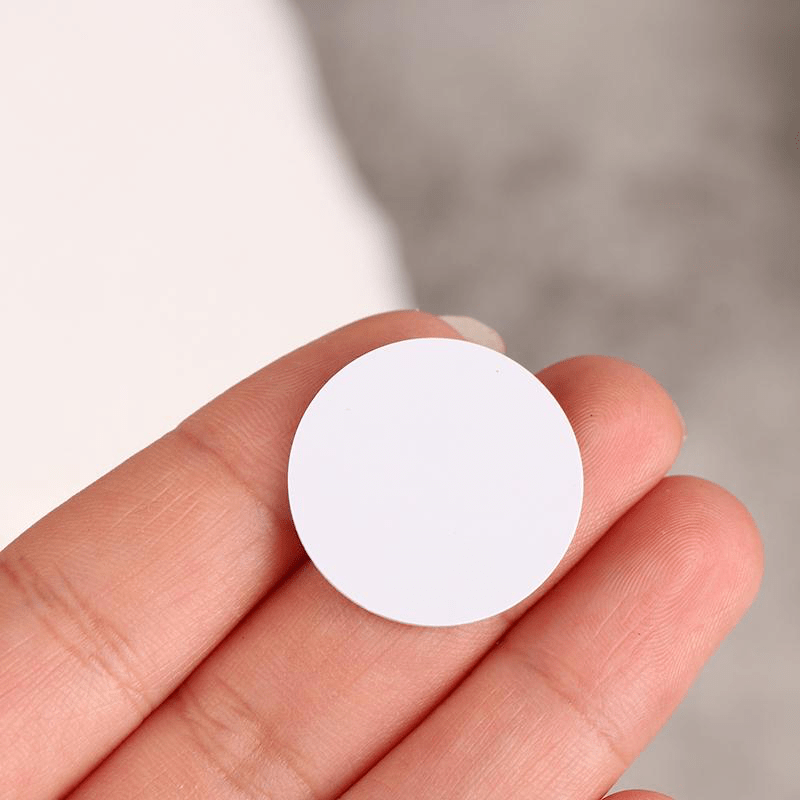
Product I purchased: https://amzn.to/4akNdCS
Step 2: Create Your Shortcut (iPhone / iOS)
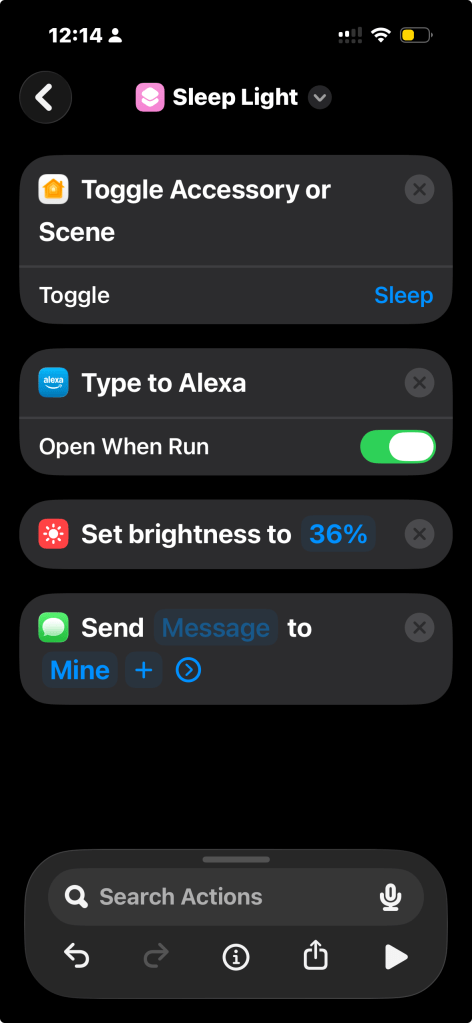
Now it’s time to create your Shortcut in the Shortcuts app.
Here’s one example from my nightly routine. It might look different for you, but this is what works in my house.
Use case: “Get Ready for Bed”
Every evening, after I finish getting my little boy ready for sleep, after his shower, pajamas, and sleep sack, I go through the same sequence.
- I dim the lights.
- I turn on white noise through our Alexa device.
- I lower my phone’s brightness in case I need to check something in the dark.
- I send my husband a quick text to let him know we are winding down. He usually waits in the living room and takes that hour for his own writing time, and eventually we regroup out there
None of these actions are complicated. But they all live in different apps. And when you are holding a sleepy toddler who just wants to be rocked, even tapping between apps feels like too much and I get overstimulated easily. I did not want to spend extra minutes every night adjusting settings one by one with one hand.
So I built a Shortcut that does everything at once. It is a small thing. But at the end of a long day, small things matter.
Step 3: Set the trigger
Once you successfully test out the shortcut, now it’s the exciting part: scan the NFC coin to turn it into a “switch”. There’s some confusion in my opinion getting yourself used to get NFC trigger to work, and I couldn’t find a good “recipe” for this, but here I hope I made it easy enough for you:
Open Automation tab within the Shortcut app (the second/middle tab); and then hit the (+) button to create new prompt.
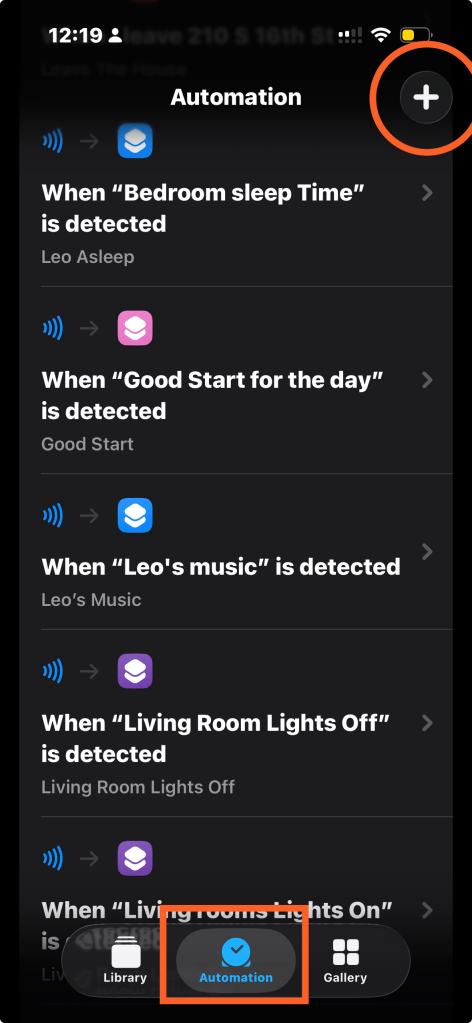
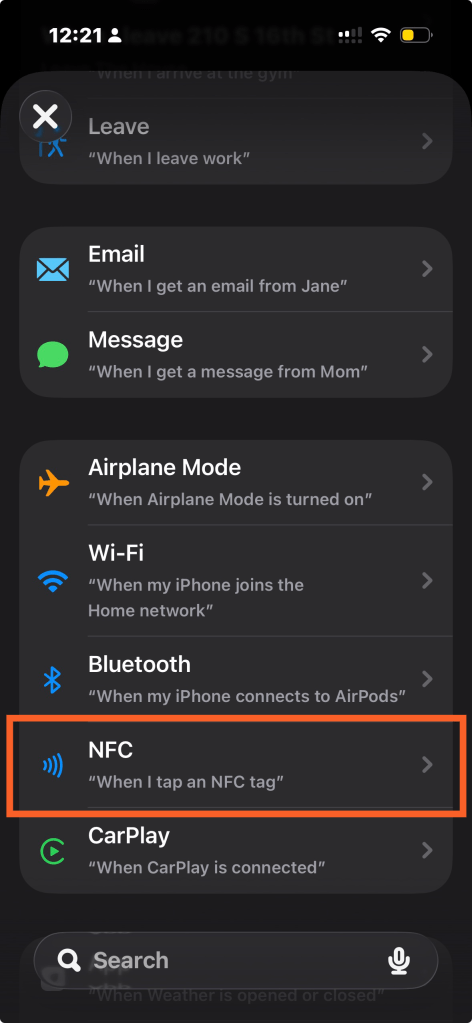
Scroll all the way down to the bottom, you will see the option for a NFC scan, select it.
After you select that option, it will prompt you to scan your tag so the system can recognize the NFC. I usually choose “Run After Confirmation” so I know the action was successfully triggered each time.
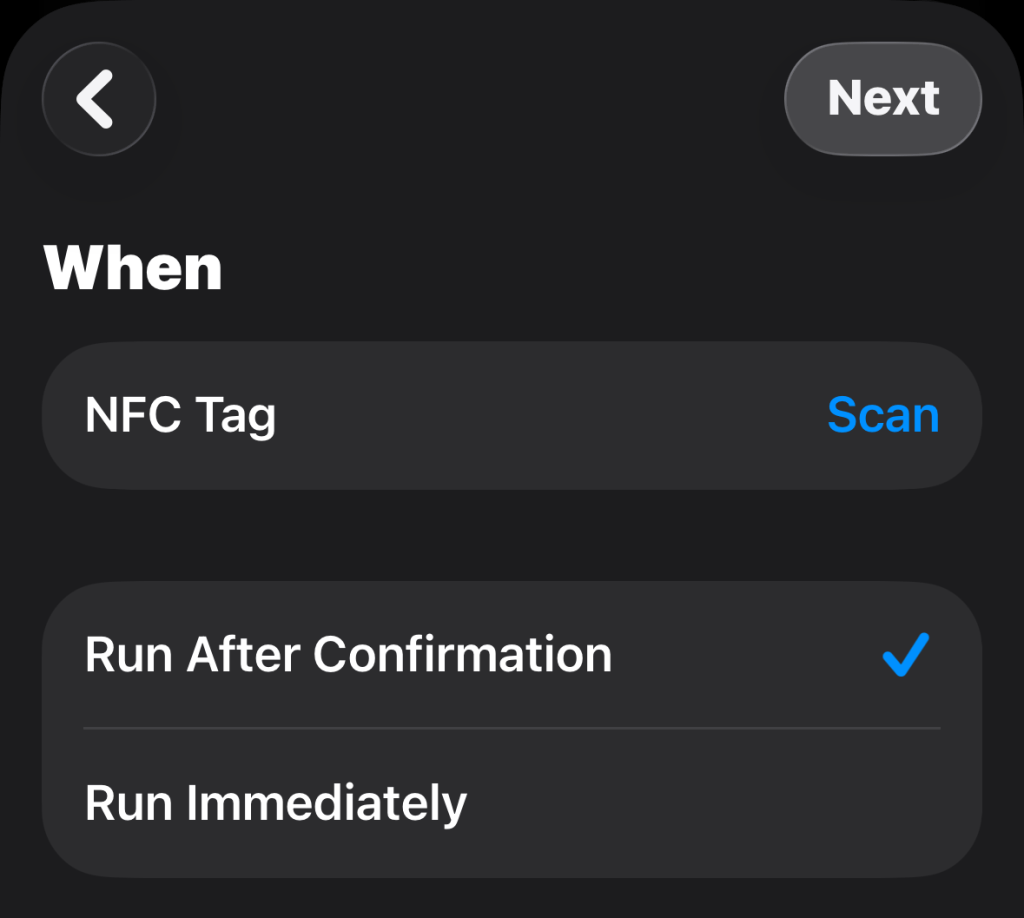
Sometimes the NFC tag is not super sensitive, especially if you are using a phone case, so having that confirmation gives me peace of mind. And that’s it!
You can use the same formula and tailor it to your own routine. That is where it gets fun. One simple scan, and everything just flows.
Here are a few other examples:
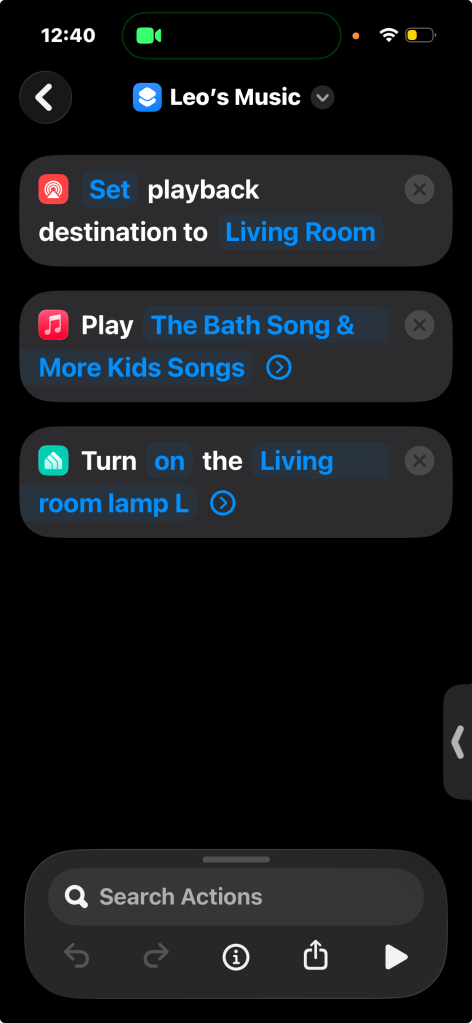
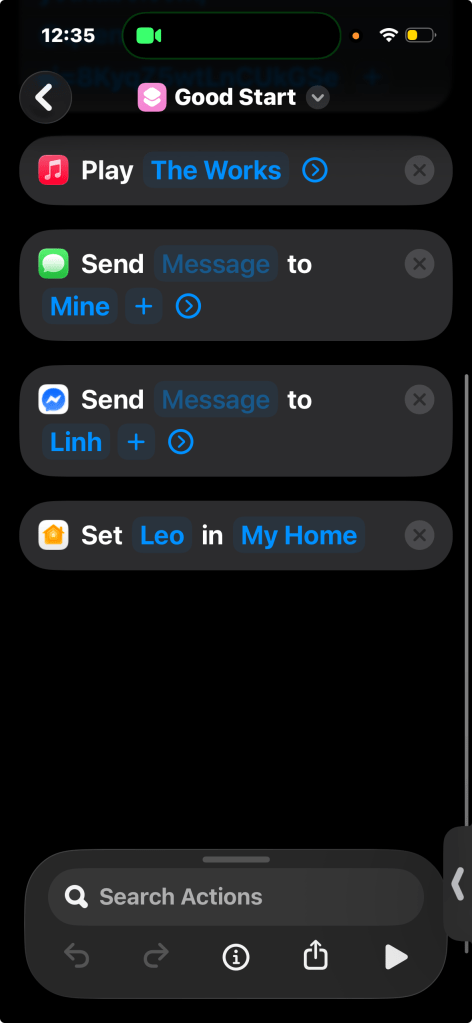
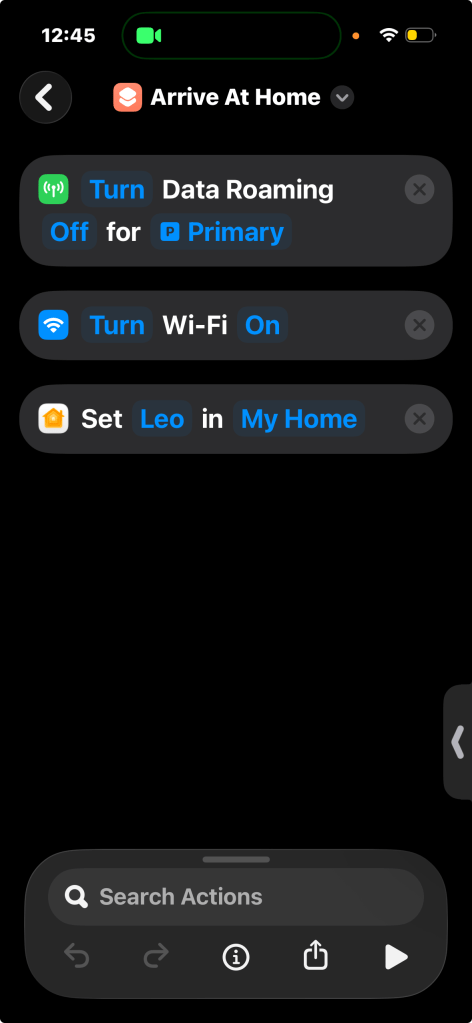
I really hope the algorithm brings this to someone who needs it. If you have any clever setups that help you survive the day as a working parent, please share in the comments. I genuinely would love to hear about them.




 The Gartnerin
Leave a comment